Protect Your Immortal Fragments
Have you collected hundreds or even thousands of Immortal fragments you no longer need? The Alchemy Lab has a small toggle that makes fragment management much easier. It is useful both for dismantling unwanted fragments and protecting the ones you want to save.
Find the Toggle
Open Alchemy Lab → Immortal Dismantle and look in the upper-right corner. The two positions of the toggle are shown below.
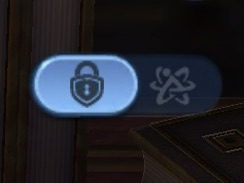
Lock / Unlock Mode
Select the padlock icon to lock fragments you want to keep or unlock fragments you no longer need.
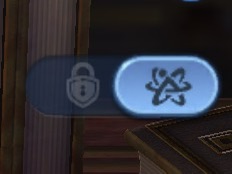
Dismantle Mode
After managing your fragment locks, select the science symbol to choose unlocked fragments for dismantling.
First manage the locks, then dismantle. The padlock controls which fragments are protected. The science symbol takes you back to selecting fragments for refinement.
Why This Matters
For developed accounts: If you have large stacks of surplus Epic (orange) Immortal fragments, this control can help you access fragments that would otherwise appear protected when you want to refine them.
For newer and free-to-play accounts: You can also protect fragments you are saving for future Immortal upgrades instead of risking an accidental dismantle.
How to Use It
- Open Alchemy Lab and choose Immortal Dismantle.
- Select the padlock icon in the upper-right corner.
- Lock fragments you want to keep and unlock any surplus fragments you want to dismantle.
- Switch to the science symbol when you have finished managing the locks.
- Select only the unlocked surplus fragments you want to refine.
- Review your selection and the expected return before pressing Refine.